|
[1] Vessel schedule
|
|
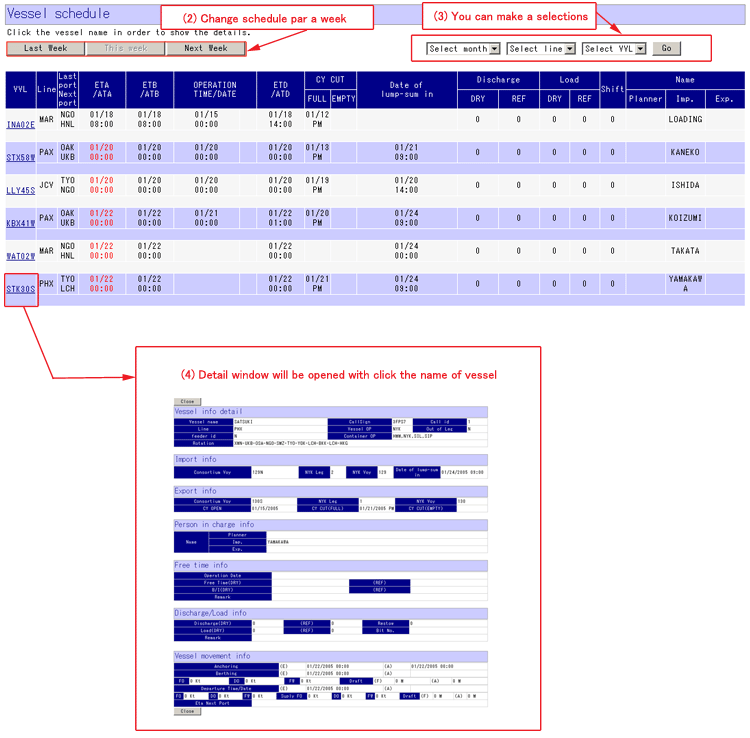
This screen will be appeared if “Vessel schedule” is
selected from menu.
|
|
* Inquiry *
(1) The screen firstly displayed is this week’s vessel schedule. (From Monday
to Friday)
(2) You can switch to show the information of vessel schedule to last week
(from last Monday to last Friday) or next week. (from next Monday to next
Friday).
(3) You can select month, service line or Vessel/Voy.
(4) You can see more detail if you click Vessel/Voy at the list on the
screen.
|
|
|
|
Top of this page
|
|
[2] Information inquiry
|
|
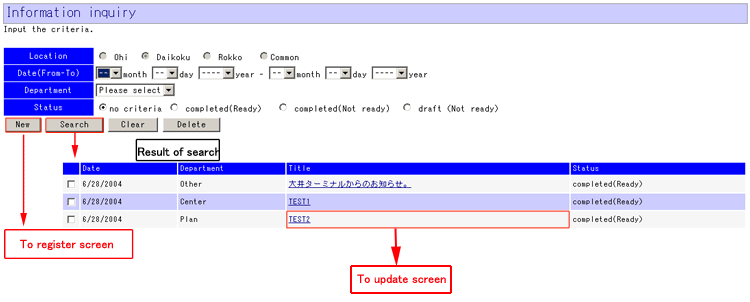
This screen will be appeared if “Information
information” is selected from menu.
>>Inquiry
>>register
>>Update
|
|
* Inquiry *
|
|
(1) Select [Location], [Date(From-To)], [Department]
or [Status].
(2) Push “Search” button.
(3) Result of search would be listed in the screen.
(4) Click title of information, and then jump to update
screen.
* Explanations for contents *
[New button] To jump to Information register screen.
[Search button] To show the list of result of search.
[Clear button] To erase inputted information.
[Delete] To delete information.
|
|
* Register *
|
|
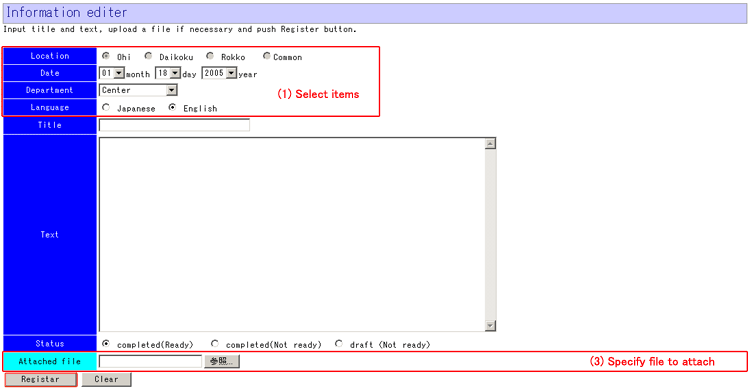
(1) Select [Location], [Date], [Department],
[Language].
(2) Input [Title] and [Text].
(3) Select Attach file if you need. Push “Ref.” button , and then you can
choose file to attach.
(4) Push “Register” button to register.
* Explanations for contents *
[Register button] To register inputted information.
[Clear button] To erase inputted information.
|
|
* Update *
|
|
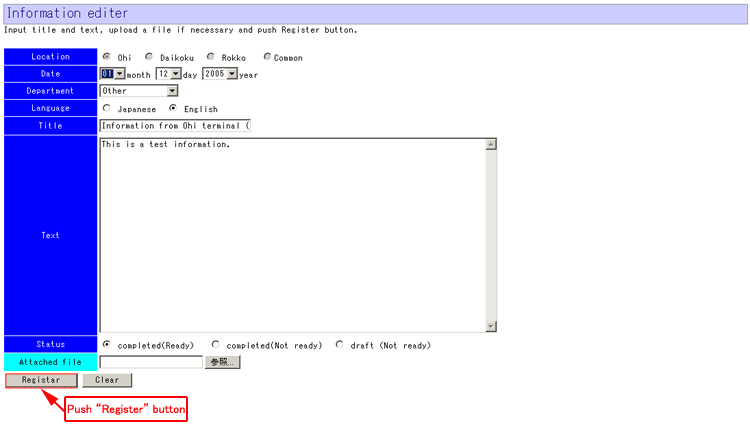
(1) Modify detail that you need to change.
(2) Push [Register] button to update.
* Explanations for contents *
[Register button] To update inputted information.
[Clear button] To back to search screen.
|
|
Top of this page
|
|
[3] Comment inquiry
|
|
This screen will be appeared if “Comment inquiry” is
selected from menu.
|
|
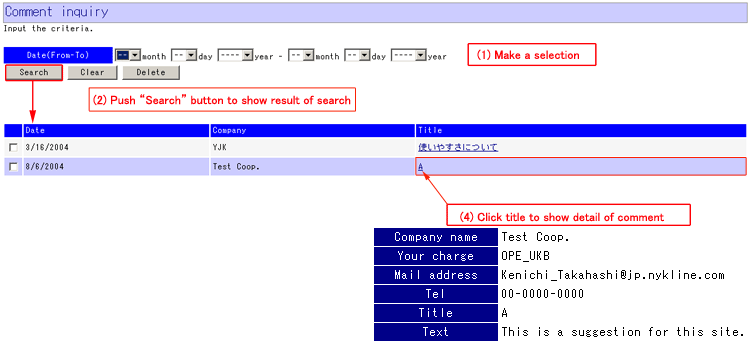
(1) Input
[Date(From-To)].
(2) Push “Search button”.
(3) Result of search would be displayed in the screen.
(4) Click the title of comment to show detail.
* Explanations for contents *
[Search button] To show list of result of search.
[Clear button] To erase inputted information.
[Delete button] To delete comment. (before push this button, you have to
select a comment to delete)
|
|
|
|
Top of this page
|
|
[4] ID/password admin
|
|
This screen will be appeared if “ID/password admin”
is selected from menu.
>>Inquiry >>Update >>Register
|
|
* Inquiry *
|
|
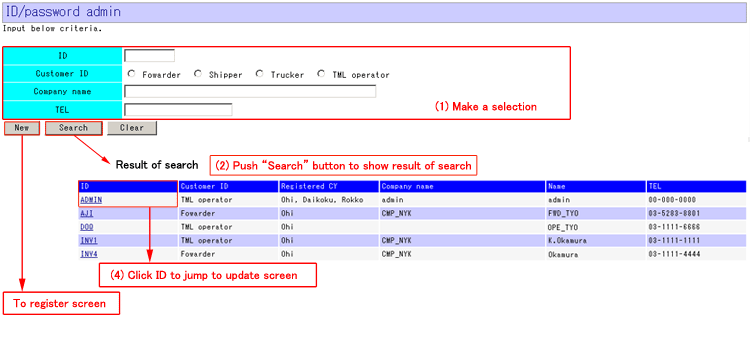
(1) Input [ID], [Customer
ID], [Company name] or [TEL].
(2) Push “Search” button.
(3) Result of search would be listed in the screen.
(4) Click ID to jump to update screen.
* Explanations for contents *
[New button] To jump to ID/password admin(register).
[Search button] To show the list of result of search.
[Clear button] To erase inputted information.
|
|
|
|
* Update *
|
|
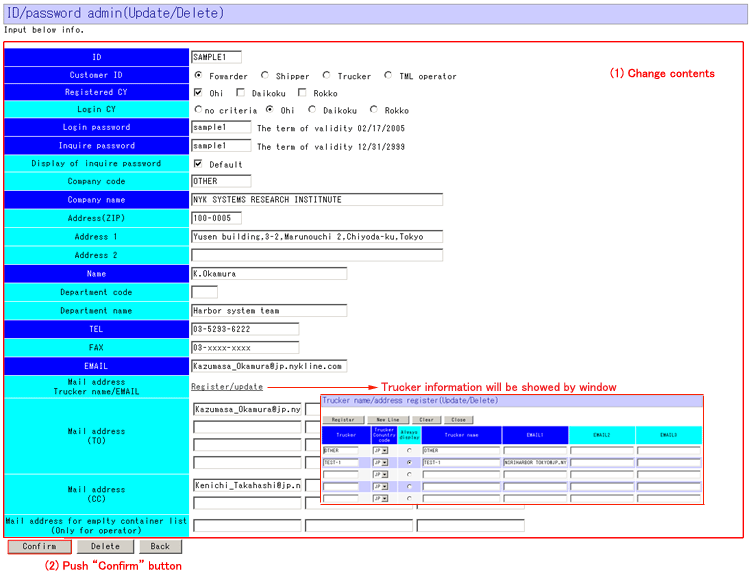
(1) Modify detail that you want to change.
[Trucker name/EMAIL] information can be changed with other window.
* [Always display] at the trucker name/EMAIL window means that always set
initial value at trucker column in pre gate-in register and delivery order
for import container register.
(2) Push “Confirm” button.
* Explanations for contents *
[Confirm button] To jump to confirm screen.
[Delete button] To delete ID.
[Back button] To back to inquiry screen.
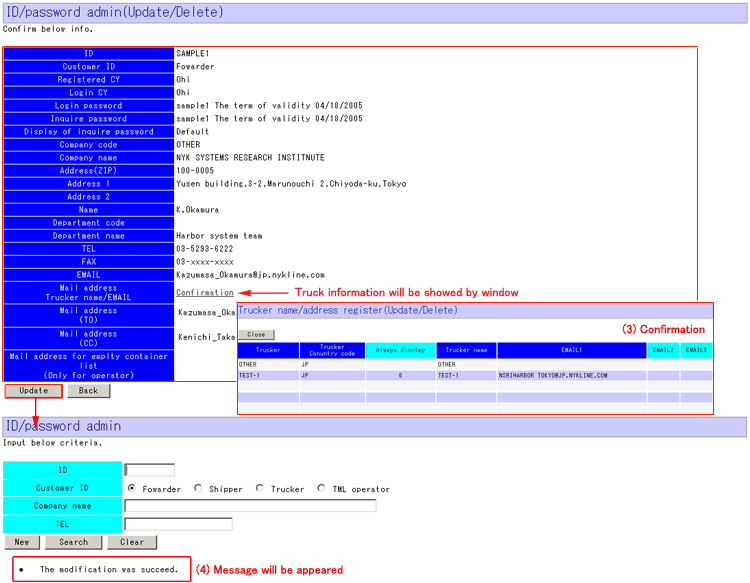
(3) Confirm the detail and push “Update” button.
You can check the detail of [Trucker name/EMAIL] with other window.
(4) Message will be displayed.
|
|
* Register *
|
|
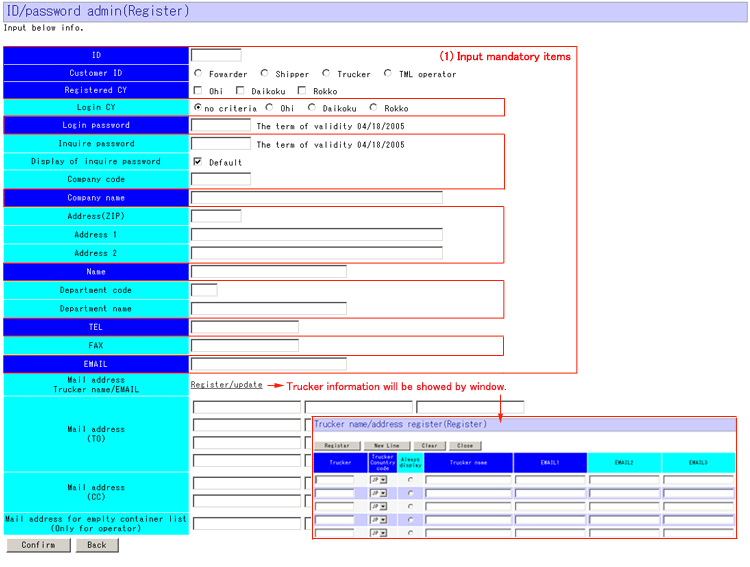
Blue items are mandatory, light blue items are
optional.
(1) Input mandatory items.
You can input the detail [Trucker name/EMAIL] with other window.
* [Always display] at the trucker name/EMAIL window means that always set
initial value at trucker column in pre gate-in register and delivery order
for import container register.
(2) Push “Confirm” button.
* Explanations for contents *
[Confirm button] To jump to confirm screen.
[Back button] To back to inquiry screen.
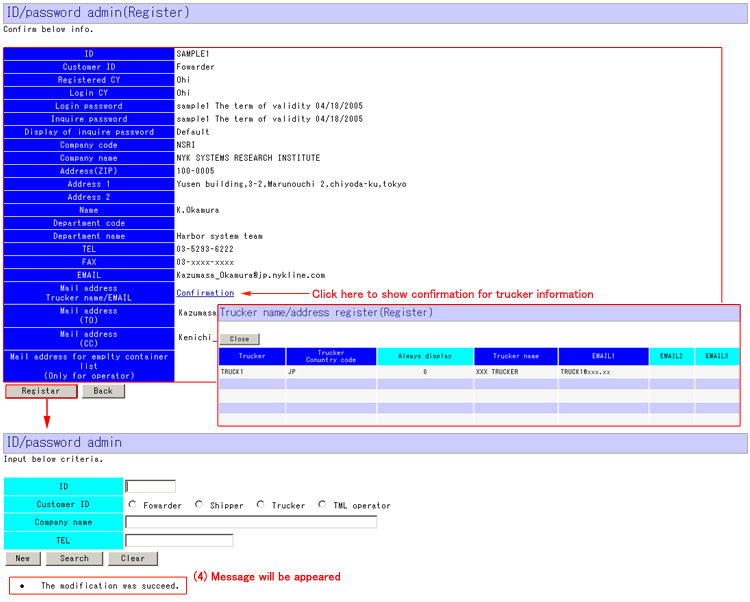
(3) Confirm the detail and push “Update” button.
You can check the detail of [Trucker name/EMAIL] with other window.
(4) Message will be displayed.
|
|
[5] Gate-in ticket inquiry
|
|
* Inquiry *
(1) Input the date of gate-in/out, or container no. (max 5 containers)
(2) Push “Search” button.
(3) Result of search would be listed in the screen.
(4) Select container, which you want to get Gate-in ticket (click a circle in the left
side of [Container No]), and push “Ticket Download” button. Then Gate-in ticket will be
downloaded.
* Explanations for contents *
[Search button] To show the result of search.
[Clear button] To erase inputted information.
[Ticket Download button] To get Gate-in ticket from web.
[Back button] To back to previous screen.
|
|
Top of this page
|