|
[2] Pre gate-in register
|
|
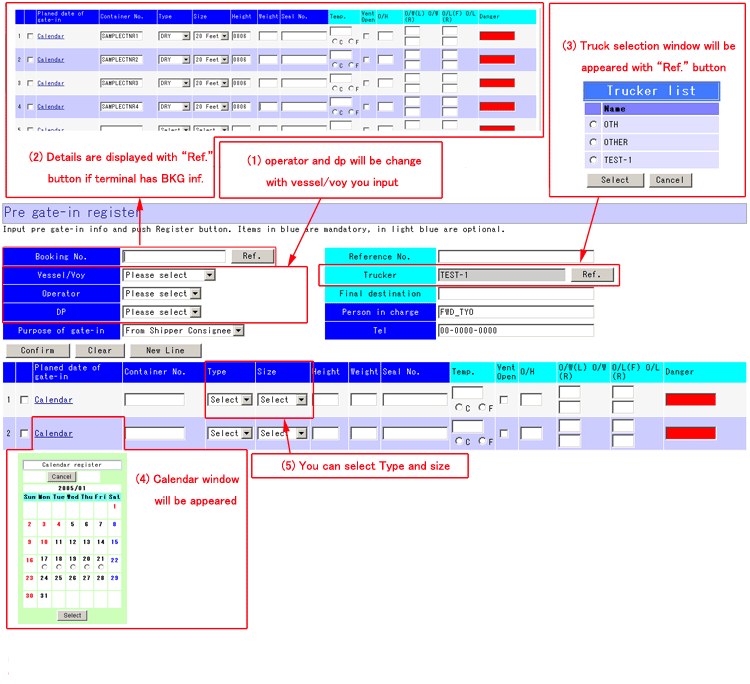
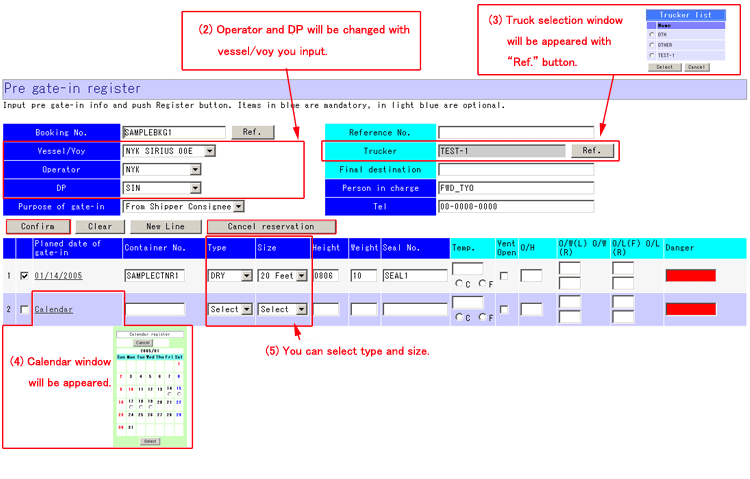
This screen will be appeared if “Pre gate-in
register” is selected from menu.
|
|
* Reservation *
Blue items are mandatory, and light blue items are optional. Input these
items and then push “Confirm” button.
(1) Input [Booking No.] and push “Ref.” button. If booking information is in
CY, the information of Vessel, Operator, DP, Purpose of gate in and
container.
(2) If there is
no information about booking your inputted, select [Vessel/Voy].
(3) Push “Ref.” button of trucker to appear the window for trucker
information. You can choose trucker.
(4) Push “Calendar” at container information to appear the window for
calendar. Select plan date to gate in.
(5) You can choose [Type] and [Size] by list at container information.
(6) Input above items, and then push “Confirm” button.
* Explanations for contents *
[Confirm button] To check inputted information. And jump to next screen if no
error.
[Clear button] To erase inputted information.
[New line button] To add new line to the container information. (Ordinary are
10 lines)
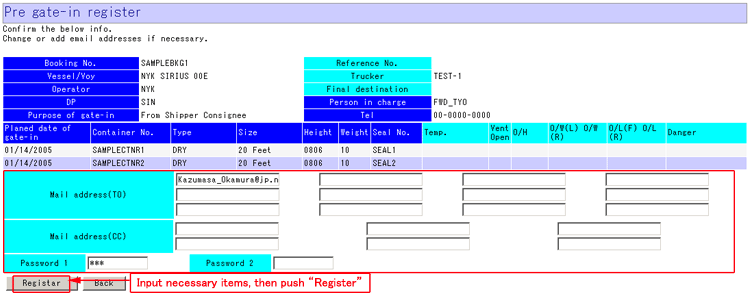
(7) Confirmation
screen would be appeared. Confirm show information.
(8) Mail address(TO), Mail address(CC), Password 1 and Password 2 would be
set as initial value.
(9) If there is no lacking information, push “Register” button.
* Explanations for contents *
[Register button] To check inputted information. If no error, register the
data and send confirmation mail.
[Back button] To back to previous screen.
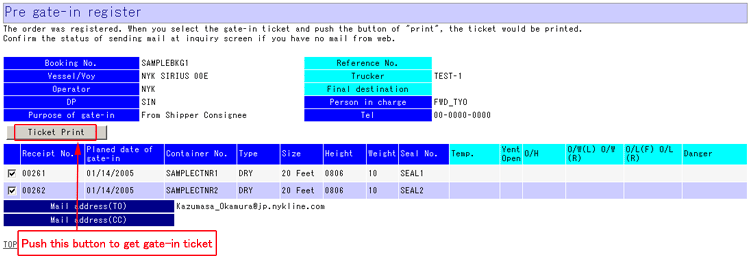
(10) Complete
screen would be appeared.
(11) You can get gate-in ticket by pushing [Ticket] button.
* Explanations for contents *
[Ticket button] To get gate-in ticket from web.
|
|
Top of this page
|
|
[3] Pre gate-in inquiry
|
|
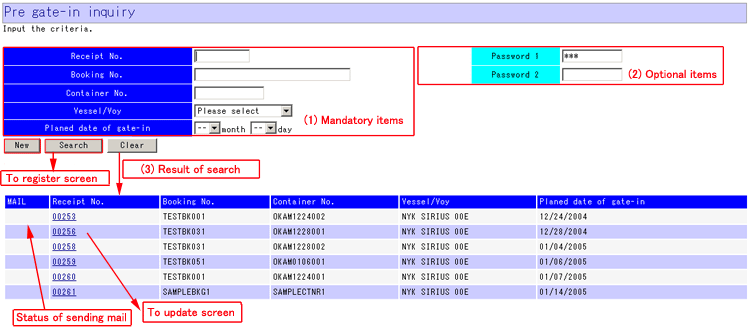
This screen will be appeared if “Pre gate-in inquiry”
is selected from menu.
>>Inquiry
>>Update
|
|
* Inquiry *
|
|
Blue items are mandatory, and light blue items are
optional. Input these items and then push “Confirm” button.
(1) Input one or more item to search.
[Receipt No], [Booking No], [Container No], [Vessel/Voy], [Planed date of
gate-in]
(2) Optional items.
Initial value would be displayed at [Password 1] and [Password 2].
* Input the password you inputted at “Pre gate-in
register”.
(3) Push “Search” button.
(4) Result of search would be listed in the screen.
(5) Click the receipt no at list in the screen and then update screen would
be appeared.
(6) Mail status at list in the screen is indicated whether receipt mail
sending is complete or not. If this column is blank, mail has been sent
normally. If this column is “Sending”, mail is sending just now. If this
column is “Fail”, mail has not been sent due to some problem of mail
interface. In this case, please try Pre gate-in register again with update process.
(Warning) If you try again with update process,
receipt no will be changed.
* Explanations for contents *
[New button] To jump to [Pre gate-in register] screen.
[Search button] To search pre gate-in information with items you inputted at
top of screen.
[Clear button] To erase all items.
|
|
* Update *
|
|
Your selected
pre gate-in information of receipt no at previous screen (pre gate-in
inquiry) would be displayed.
* Process of update is same as register.
* Explanations
for contents *
[Confirm button] To check inputted information. And jump to next screen if no
error.
[Clear button] To erase inputted information.
[New line button] To add new line to the container information. (Ordinary are
10 lines)
[Cancel
reservation] To cancel reservation on the screen.
|
|
Top of this page
|
|
[4] Delivery order for empty container register
|
|
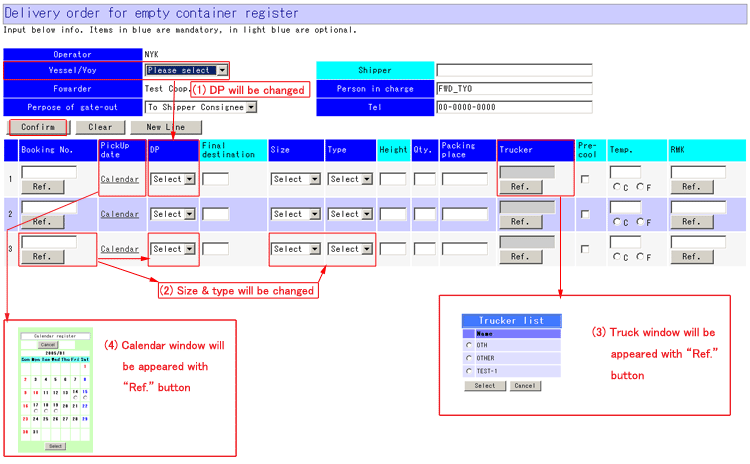
This screen will be appeared if “Delivery order for
empty container register” is selected from menu.
|
|
* Reservation *
Blue items are mandatory, and light blue items are optional. Input these
items and then push “Confirm” button.
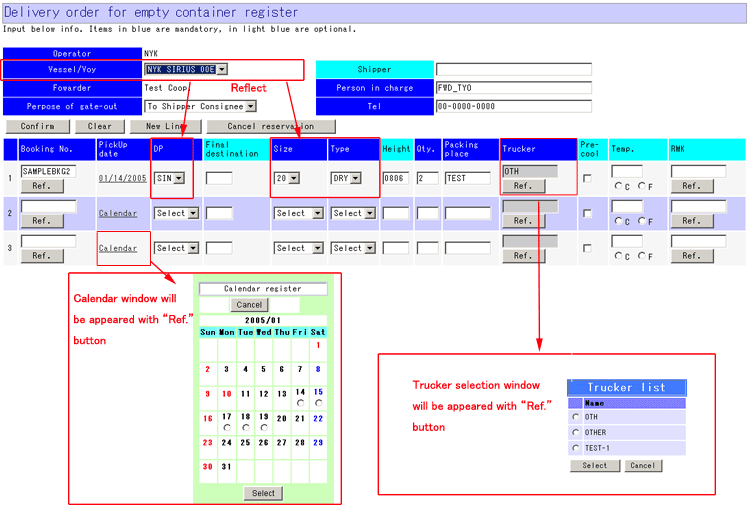
(1) Select [Vessel/Voy].
(2) Input [Booking No.] and push “Ref.” button. [DP], [Size] and [Type] will
be set automatically if terminal has booking information. In case of that
terminal does not have booking information, please input manually.
(3) Push “Ref.” button of trucker to appear the window for trucker
information. You can choose trucker.
(4) Push “Calendar” at detail to appear the window for calendar. Select plan
date to pick up. (You must select [Vessel/Voy] first)
(5) You can choose [Type] and
[Size] by list at detail.
(6) Input above items, and then push “Confirm” button.
* Explanations for contents *
[Confirm button] To check inputted information. And jump to next screen if no
error.
[Clear button]
To erase inputted information.
[New line
button] To add new line to the container information. (Ordinary are 10 lines)
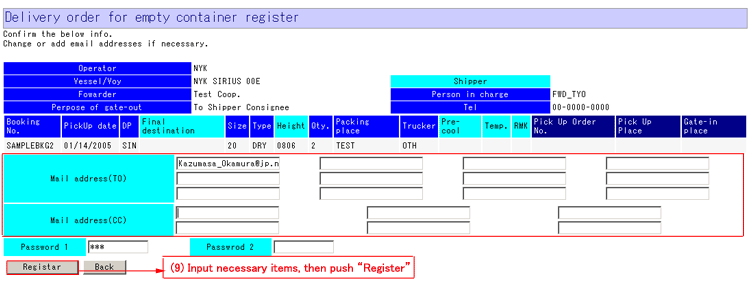
(7) Confirmation
screen would be appeared. Confirm showed information.
(8) Mail address(TO), Mail address(CC), Password 1 and Password 2 would be
set as initial value.
(9) If there is
no lacking information, push “Register” button.
* Explanations for contents *
[Register button] To check inputted information. If no error, register the
data and send confirmation mail.
[Back button] To
back to previous screen.
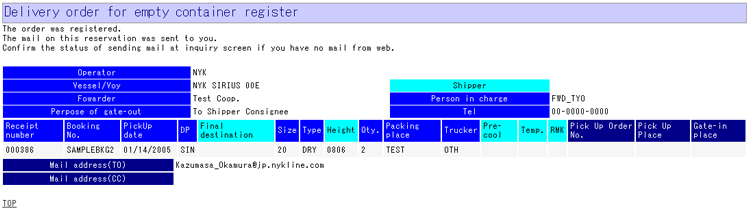
(10) Complete
screen would be appeared.
|
|
Top of this page
|
|
[5] Delivery order for empty container
inquiry
|
|
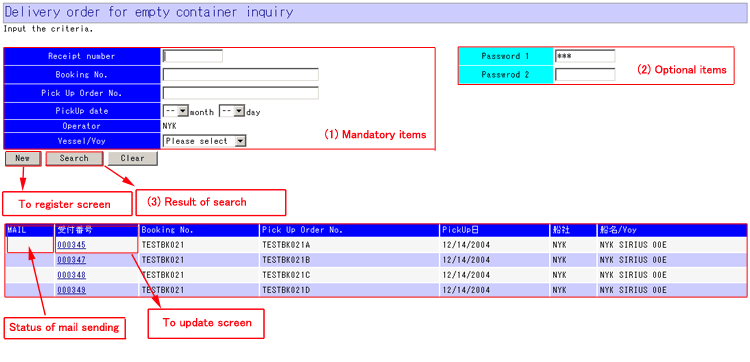
This screen will be appeared if “Delivery order for
empty container inquiry” is selected from menu.
>>Inquiry
>>Update
|
|
* Inquiry *
|
|
Blue items are
mandatory, and light blue items are optional. Input these items and then push
“Confirm” button.
(1) Input one or more item to search.
[Receipt No], [Booking No], [Pick Up Order No], [PickUp date] or
[Vessel/Voy]
(2) Optional items.
Initial value would be displayed at [Password 1] and [Password 2].
* Input the password you inputted at “Delivery
order for empty container register”.
(3) Push search button.
(4) Result of search would be listed in the screen.
(5) Click the receipt no at list in the screen and then update screen would
be appeared.
(6) Mail status at list in the screen is indicated whether receipt mail
sending is complete or not. If this column is blank, mail has been sent
normally. If this column is “Sending”, mail is sending just now. If this
column is “Fail”, mail has not been sent due to some problem of mail
interface. In this case, please try Delivery order for empty containers
register again with update process.
(Warning) If you try again with update process,
receipt no will be changed.
* Explanations for contents *
[New button] To jump to [Delivery order for empty container register]
screen.
[Search button] To search pre gate-in information with items you inputted at
top of screen.
[Clear button] To erase all items.
|
|
* Update *
|
|
Your selected
delivery order information of receipt no at previous screen (Delivery order
for empty container inquiry) would be displayed.
* Process of update is same as register.
* Explanations
for contents *
[Confirm button] To check inputted information. And jump to next screen if no
error.
[Clear button] To erase inputted information.
[New line button] To add new line to the container information. (Ordinary are
10 lines)
[Cancel reservation] To cancel reservation on the screen.
|
|
Top of this page
|
|
[6] Delivery order for import container
register
|
|
This screen will be appeared if “Delivery order for
import container register” is selected from menu.
>>B/L
inquire >>If terminal has B/L inf. >>If
terminal does not have B/L inf.
|
|
*
B/L inquire *
|
|
Blue items are mandatory, and light blue items are
optional. Input these items and then push “Inquire” button.
(1) Input [B/L No] and push “Inquire” button.
If B/L information is
in terminal, next screen will be appeared.
(2) If terminal does not have B/L information (you can see the message),
select [Vessel/Voy] and push “Inquire” button again. Then temporary
reservation screen.
* Displayed screens are different in case of that
B/L information is in terminal or not.

|
|
*
If terminal has B/L inf. *
|
|
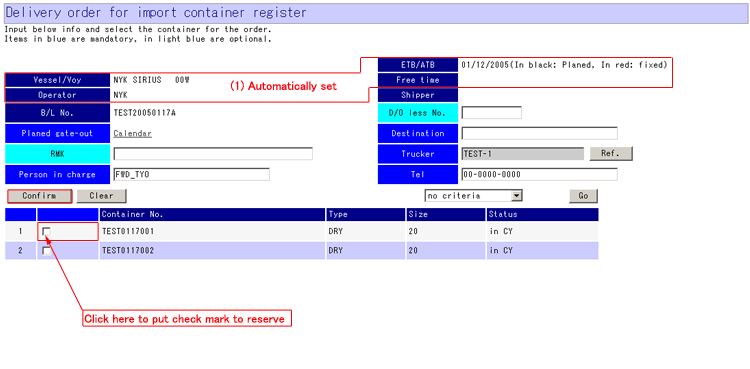
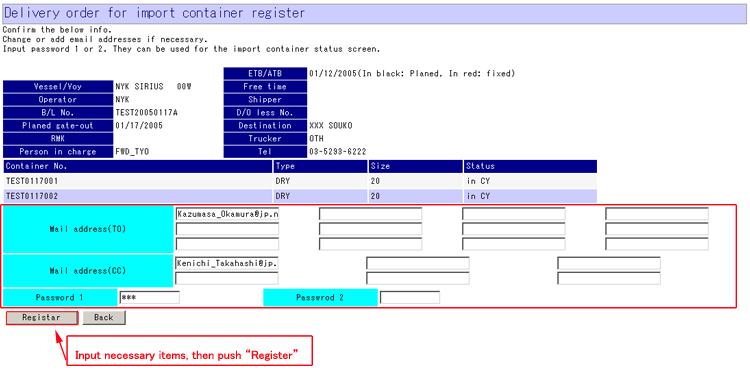
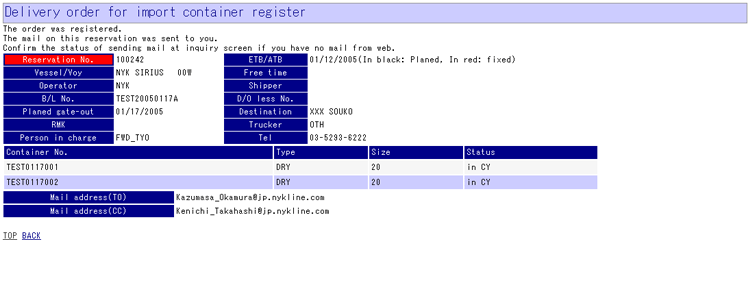
(1) Displayed information is selected by your
inputted [B/L No] at previous screen.
(2) Containers will be displayed.
(3) Input mandatory items.
[Planed gate-out],
[Person in charge], [Destination], [Trucker] and [Tel]
(4) Input optional items.
[RMK] and [D/O less
No]
(5) Select container to be target of planed gate out.
(6) Push “Confirm” button.
* Explanations for contents *
[Confirm button] To check inputted information. And jump to next screen if no
error.
[Clear button] To erase inputted information.
[Go button] To select showing information by status of container.
|
|
* If terminal does not have B/L inf. *
|
|
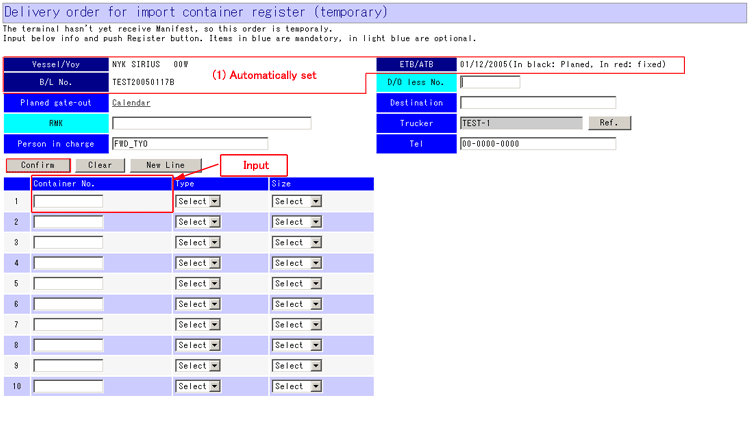
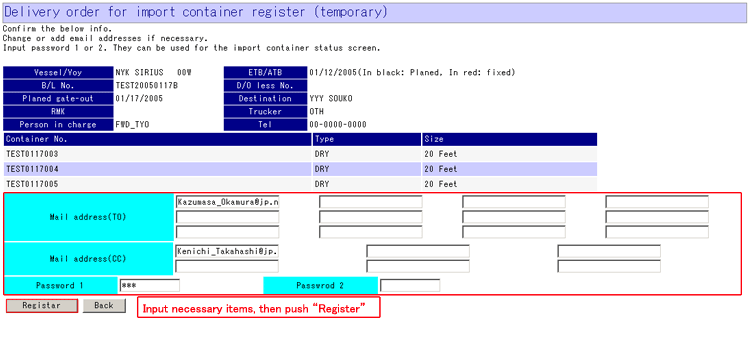
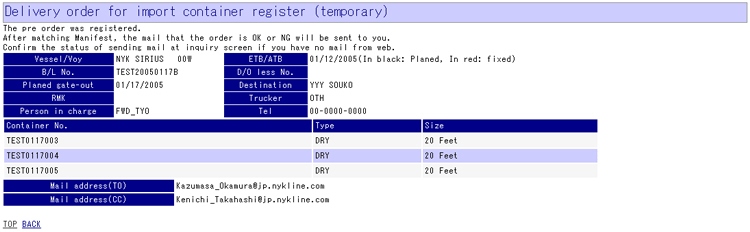
If no data to
show by inputted [B/L No] at previous screen, you make a temporary
reservation at this screen.
(1) Temporary reservation screen would be appeared.
(2) Input mandatory items.
[Planed gate-out],
[Person in charge], [Destination], [Trucker], [Tel] and [Container No]
(3) Input optional items.
[RMK] and [D/O less
No
(4) You can choose [Type] and [Size] by list at container information.
(5) Input above items, and then push “Confirm”.
* Explanations for contents *
[Confirm button] To check inputted information. And jump to next screen if no
error.
[Clear button] To erase inputted information.
[New line button] To add new line to the container information. (Ordinary are
10 lines)
|
|
Top of this page
|
|
[7] Delivery order for import container
inquiry
|
|
This screen will be appeared if “Delivery order for
import container inquiry” is selected from menu.
>>Inquiry >>Update
|
|
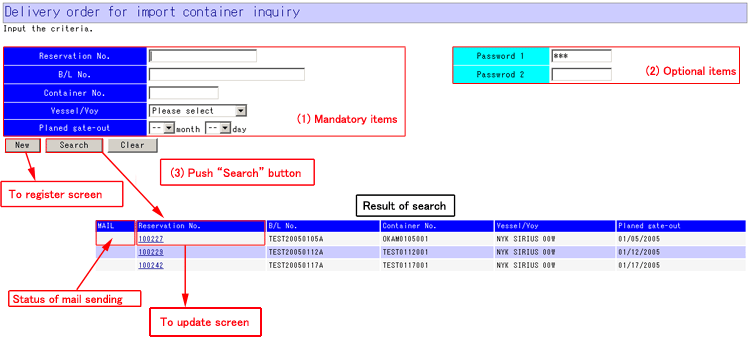
* Inquiry *
|
|
Blue items are
mandatory, and light blue items are optional. Input these items and then push
“Search” button.
(1) Input one or more item to search.
[Reservation No],
[B/L No], [Container No], [Vessel/Voy] or [Planed gate-out]
(2) Input optional items if you need.
Initial value would
be displayed at [Password 1] and [Password 2].
* Input the password
you inputted at “Delivery order for import container register”.
(3) Push “Search” button.
(4) Result of search would be listed in the screen.
(5) Click the receipt no at list in the screen and then update screen would
be appeared.
(6) If the reservation which is temporary one, “Making a reservation....” is
showed at the column of reservation no.
(7) Mail status at list in the screen is indicated whether receipt mail
sending is complete or not. If this column is blank, mail has been sent
normally. If this column is “Sending”, mail is sending just now. If this
column is “Fail”, mail has not been sent due to some problem of mail
interface. In this case, please try Delivery order for import container
register again with update process.
* Explanations for contents *
[New button] To jump to [Delivery order for import container register]
screen.
[Search button] To search pre gate-in information with items you inputted at
top of screen.
[Clear button] To erase all items.
|
|
* Update *
|
|
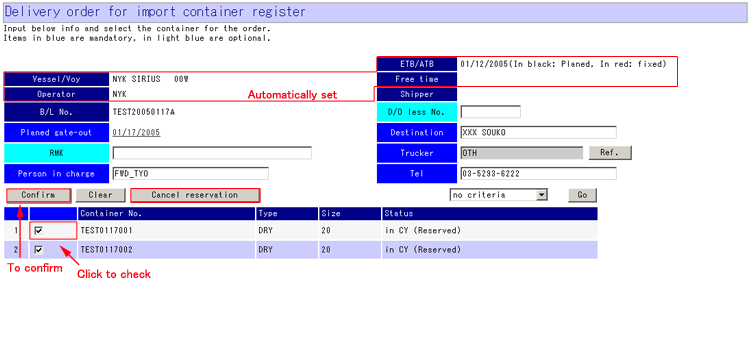
Your selected
delivery order information of receipt no at previous screen (delivery order
for import container inquiry) would be displayed.
* Process of update is same as register.
* Explanations
for contents *
[Confirm button] To check inputted information. And jump to next screen if no
error.
[Clear button] To erase inputted information.
[New line button] To add new line to the container information. (Ordinary are
10 lines)
[Cancel
reservation] To cancel reservation on the screen.
|
|
Top of this page
|
|
[8] Import container status
|
|
This screen will be appeared if “Import container
status” is selected from menu.
|
|
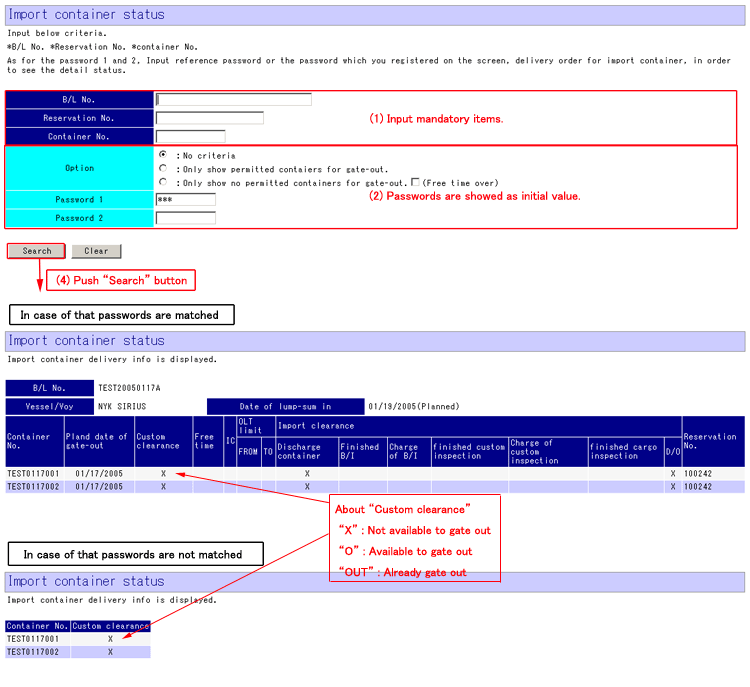
* Inquiry *
(1) Input one or
more blue item to search.
[B/L No],
[Reservation No] or [Container No]
(2) [Option] to select data is optional.
(3) Initial value would be displayed at [Password 1] and [Password 2].
* Input the password you inputted at “Delivery order for
import container register”.
(4) Push “Search” button.
(5) Result of search would be listed in the screen.
* In case that password is matched, you can see the
detail. If password is not matched, only basic information will be displayed.
* Explanations for contents *
[Search button] To search delivery order information with items you inputted
at top of screen.
[Clear button] To erase all items.
|
|
|
|
Top of this page
|
|
[9] Export container status
|
|
This screen will be appeared if “Export container
status” is selected from menu.
|
|
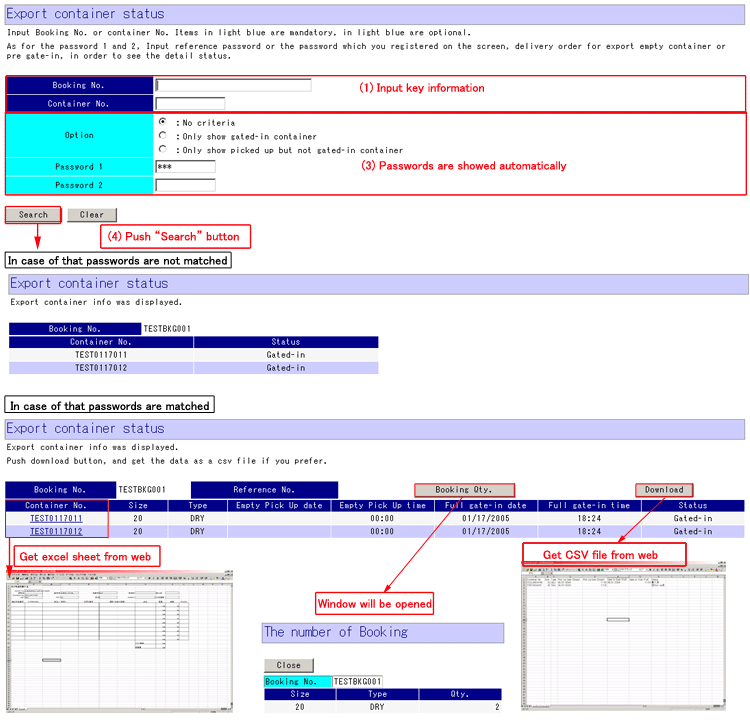
* Inquiry *
(1) Input one or more blue item to search.
[Booking No] or
[Container No]
(2) [Option] to select data is optional.
(3) Initial value would be displayed at [Password 1] and [Password 2].
* Input the password you inputted at “Pre gate-in register”
or “Delivery order for empty container register”.
(4) Push “Search” button.
(5) Result of search would be listed in the screen.
* In case that password is not matched, export
container status would not be appeared.
* You can see the
status of container which has reservation for “delivery order for import
container” or “pre gate-in”.
* Explanations for contents
[Search button] To search delivery order information with items you inputted
at top of screen.
[Clear button] To erase all items.
* Explanations of contents for result list screen.
[Container No] To get excel sheet for CLP from web.
[The number of Booking] To show the number of booking with other window.
[DOWNLOAD] To get the list of result in this screen from web.
|
|
|
|
Top of this page
|
|
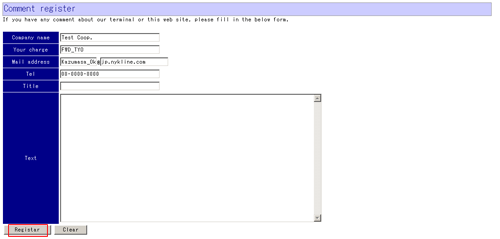
[10] Comment register
|
|
|
* Comment *
Input items in screen, and then push “Register” button.
|
|
Top of this page
|