|
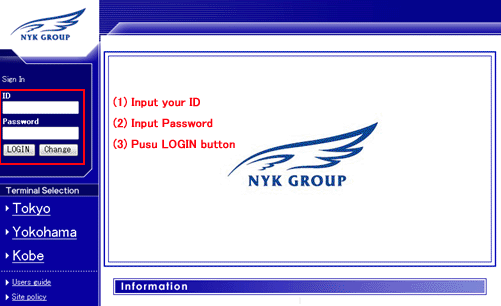
[1] Sign in
|
|
|
(1) Input your
ID.
(2) Input password.
(3) Push ‘LOGIN’ button.
Change
password screen will be appeared if the password expired.
|
|
-->Top of this menu
|
|
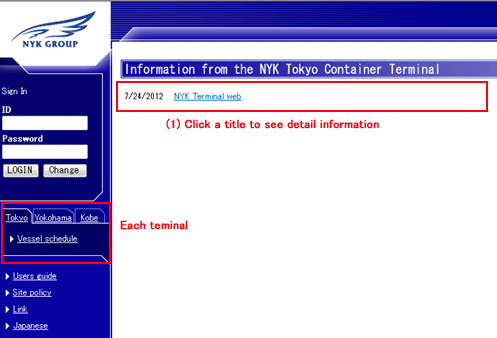
[2] Information from the terminal
|
|
|
In the top page,
common information would be displayed.
To see information for each terminal, click terminal tab.
(1) Click the title of information, and then you can see the detail.
|
|
Top of this menu
|
|
[3] Change password
|
|
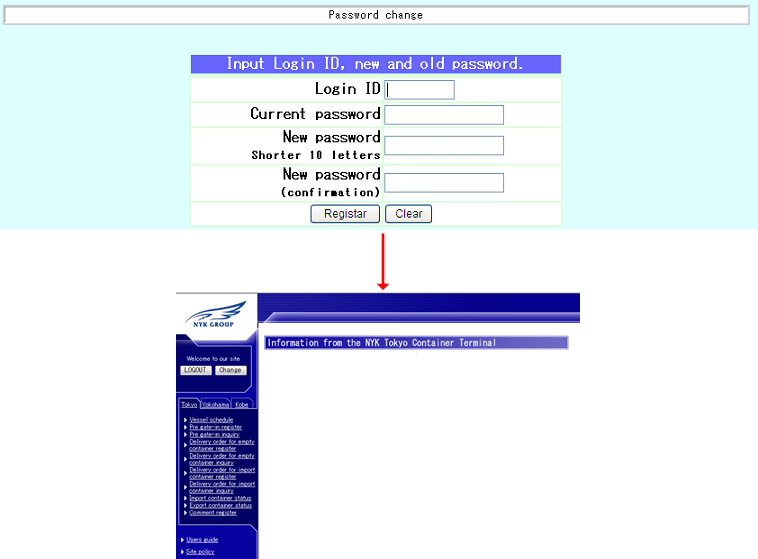
* Changing
process *
(1) Input the information of sign in, and then push register button.
* Explanations for contents *
[Register button] To change password and sign in.
[Clear button] To erase inputted information.
|
|
|
|
Top of this menu
|
|
[4] Vessel schedule
|
|
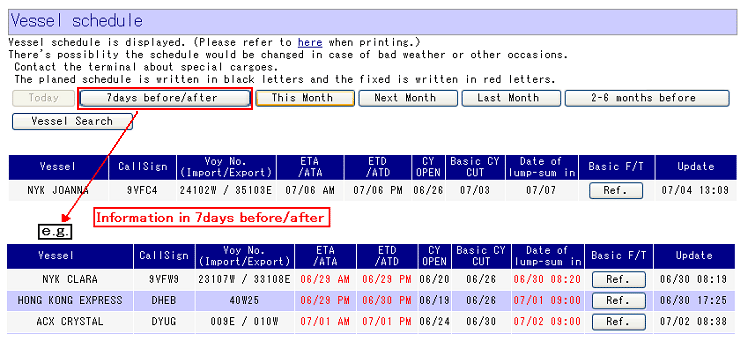
This screen will be appeared if “Vessel schedule” is
selected from menu.
You can see same information as this from top menu, forwarder menu and
trucker menu.
|
|
* Explanations
for contents *
(1) The screen firstly displayed is this today's vessel schedule. (ETA/ATA equal today)
(2) You can switch to show the information of vessel schedule to today ,7days before/after
(from 13 days before to 7 days after) ,this month , next month , Last month or 2-6 months before.
(3) Import/Export data to show the information of vessel schedule.
|
|
|
|
* Explanations
for contents *
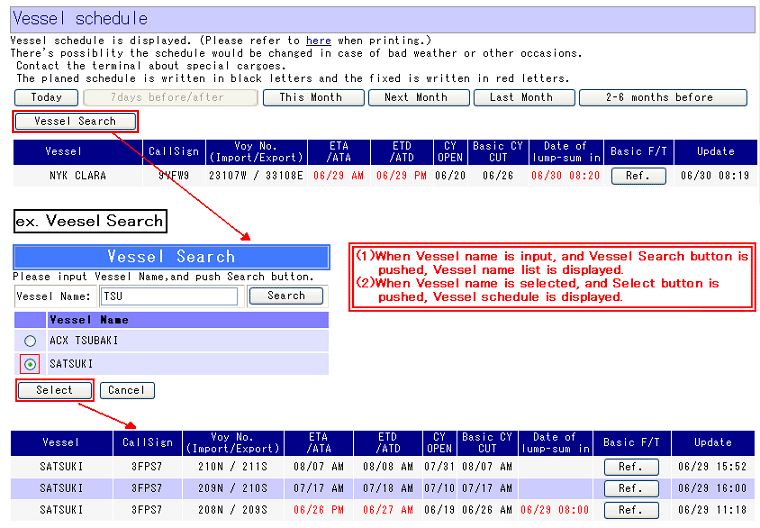
(4) Veesel schedule can be retrieved by pushing Vessel Search button.
(ETA/ATA from 6 months before to next month is retrieved.)
|
|
|
|
* Explanations
for contents *
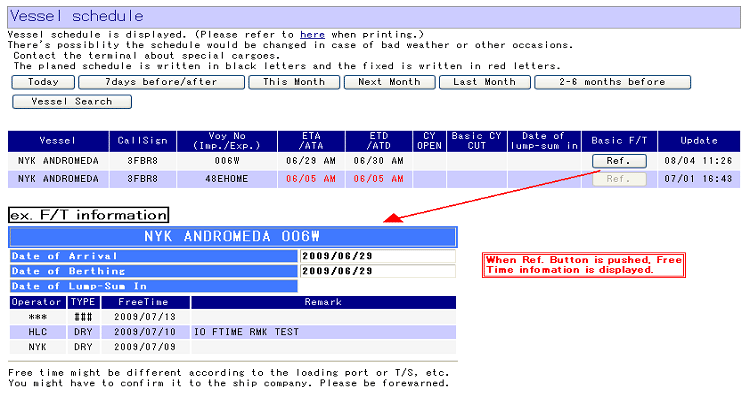
(5) Free Time information can be displayed by pushing Ref button.
|
|
|
|
Top of this page
|